
When an event fills up, it’s usually a great sign—your community is engaged, your volunteers are motivated, and your event is in demand. But full signups can also lead to logistical headaches: managing overflow, tracking who wants a spot if something opens up, and making sure the right people get notified at the right time.
PlanHero’s new Waitlist feature, available on Pro Plans and higher, solves that problem with simple automation and total transparency for both organizers and participants.
Whether you're coordinating school volunteers, nonprofit events, church ministries, community programs, or recurring shifts, Waitlists ensure no spot goes unused—and no one is left guessing.
WHAT IS THE WAITLIST FEATURE?
The Waitlist feature allows participants to add themselves to a queue when an Item in your Signup List is full. If someone cancels or a spot opens up, PlanHero automatically upgrades the next person on the Waitlist into that newly available slot—no manual intervention required from the organizer.
It’s an effortless way to keep your signup lists full and your participants informed.
HOW TO ENABLE WAITLISTS IN YOUR EVENT
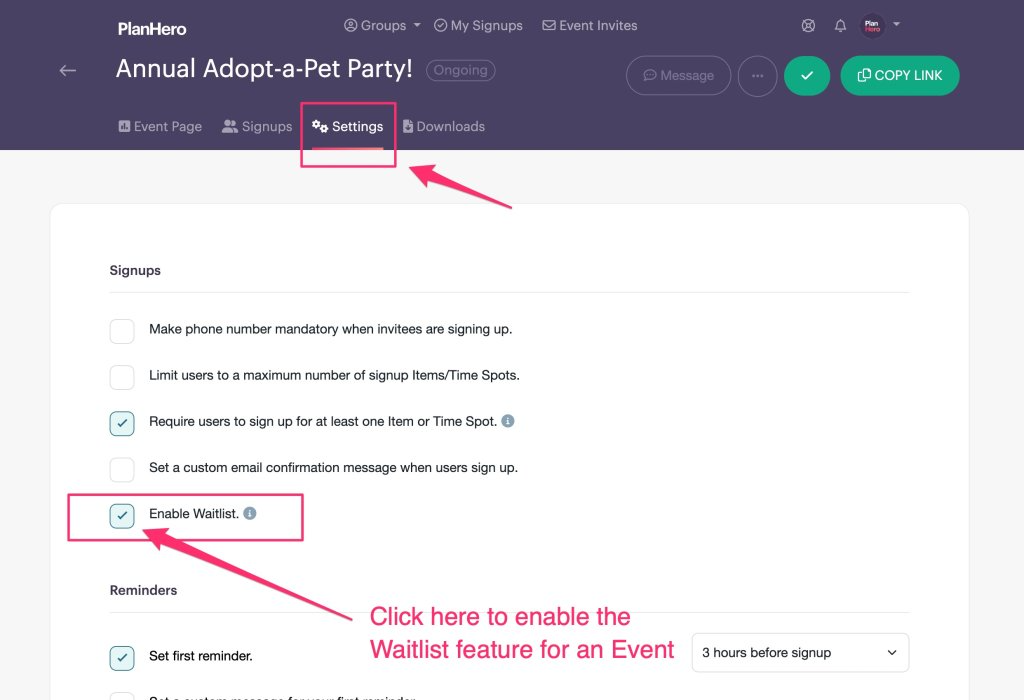
1. Turn on Waitlists in Event Settings
Start by navigating to Event Settings. There, simply check the Waitlist box. This primes your event to use Waitlists at the Item level.
This step activates the feature for the entire event, but you still have full control over which Items you want to allow Waitlists for.
2. Enable Waitlists for Any Item in Your Signup List
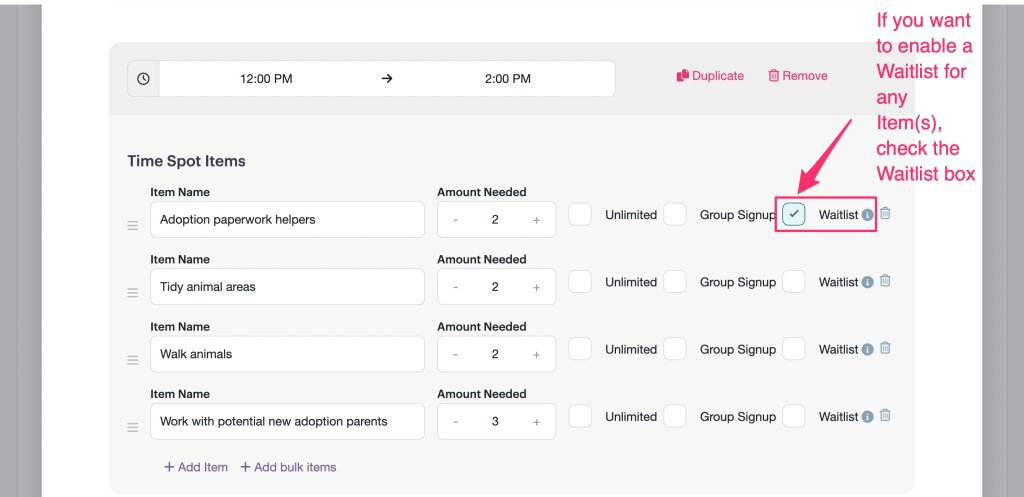
Once your event is set up, you can decide which Items—such as volunteer shifts, items to give/bring, or time blocks—should have Waitlists.
Just check the Waitlist box for that specific Item.
This means each Item can independently have (or not have) a Waitlist, giving you ultimate flexibility.
WHEN PARTICIPANTS CAN JOIN THE WAITLIST
Each Item includes an Amount Needed field that indicates the number of volunteers, donations, or participants you require/allow.
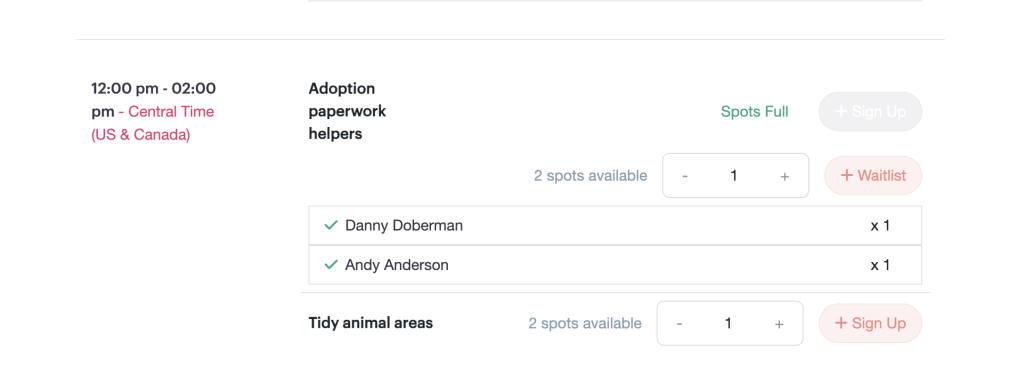
Once the required amount is reached:
- The Item is marked Spots Full
- The Waitlist automatically becomes available (if enabled)
- Participants will now see the +Waitlist button instead of the +Sign Up button
AUTOMATIC MOVEMENT FROM WAITLIST → OPEN SPOT
If a participant cancels their spot or an organizer manually frees up a space, PlanHero:
1. Automatically promotes the first person on the Waitlist
2. Moves them directly into the open Item
3. Sends them a notification email letting them know they now have a confirmed spot
ORGANIZERS CAN ALSO ADD PEOPLE TO THE WAITLIST
From the organizer dashboard, you can add participants to any Waitlist at any time.
WHY WAITLISTS ARE A GAME-CHANGER
PlanHero’s Waitlist feature helps you:
- Ensure every spot gets filled
- Avoid empty volunteer shifts or opportunity gaps
- Reduce back-and-forth communication
- Automatically keep your signup lists current
- Offer participants a smooth, professional experience
AVAILABLE ON PRO PLANS AND HIGHER
If you're already on a Pro Plan or above, Waitlists are ready for you to use. If you're on a Free or Essentials plan, upgrading unlocks this feature along with custom event banners, volunteer hour tracking, full account reporting, and more. You can upgrade via your My Account Settings.