Enable Check-ins and Check-outs for an Event
The Check-in feature is available in our PlanHero Impact Plan.
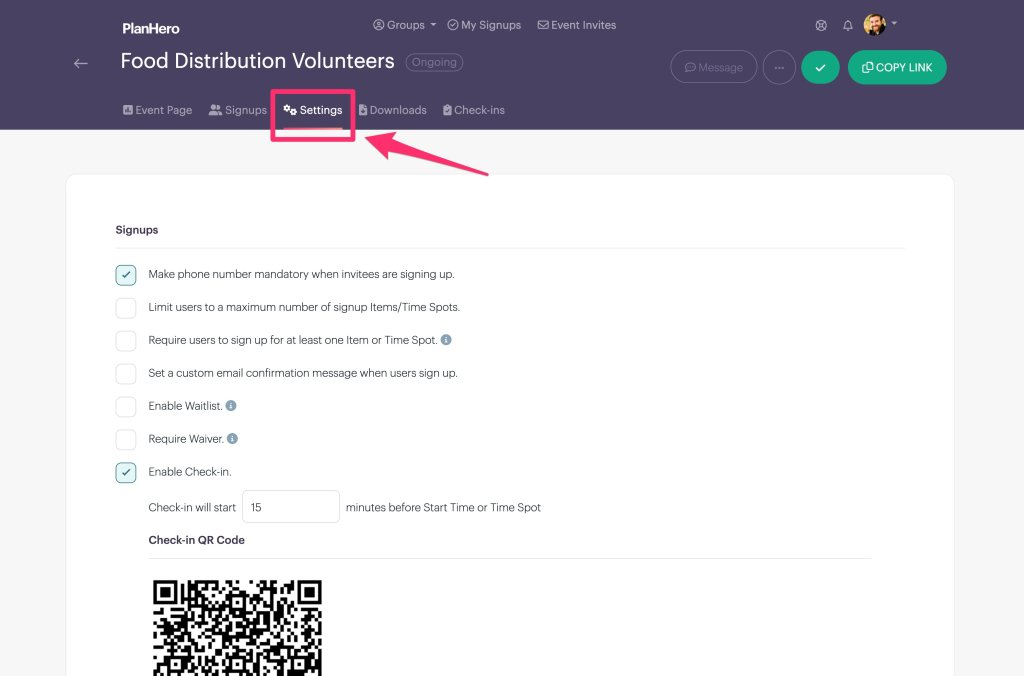
Click Event Settings
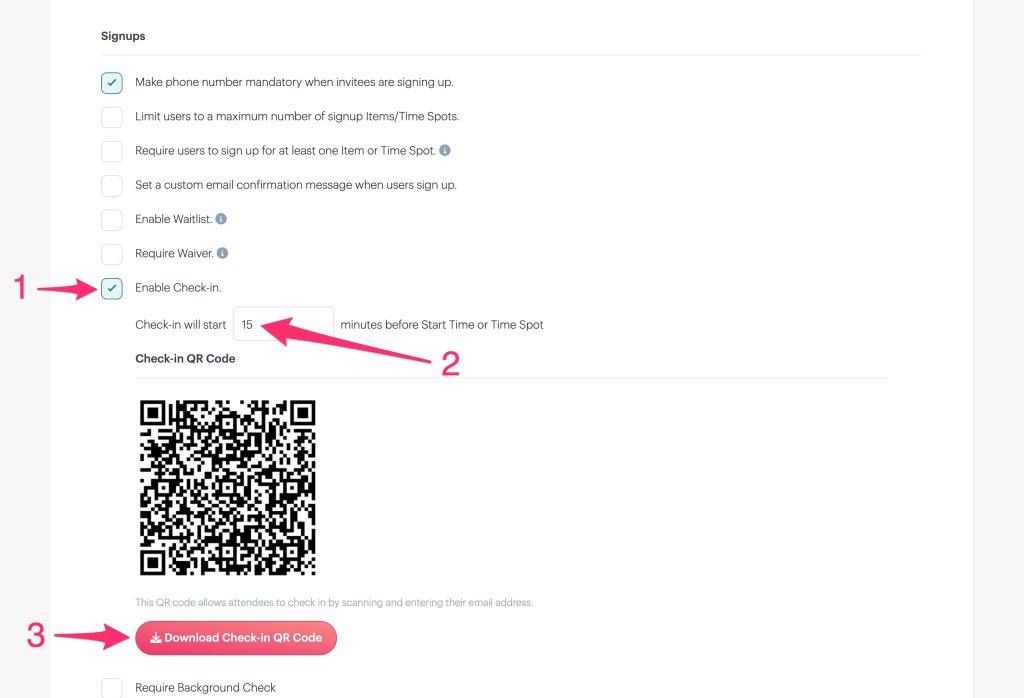
1. Check the Enable Check-in box.
2. Enter the amount of time before a the Event Start Time or the Time Spot that a participant is allowed to checked.
3. If you're allowing participants to self-check-in, download the Check-in QR Code. You can either print the QR code and have it readily available on paper or a poster for self-checking in with a mobile device; or you can upload it to a screen that you will display digitally (e.g. on a tablet) at a check-in station.
Participant Check-in
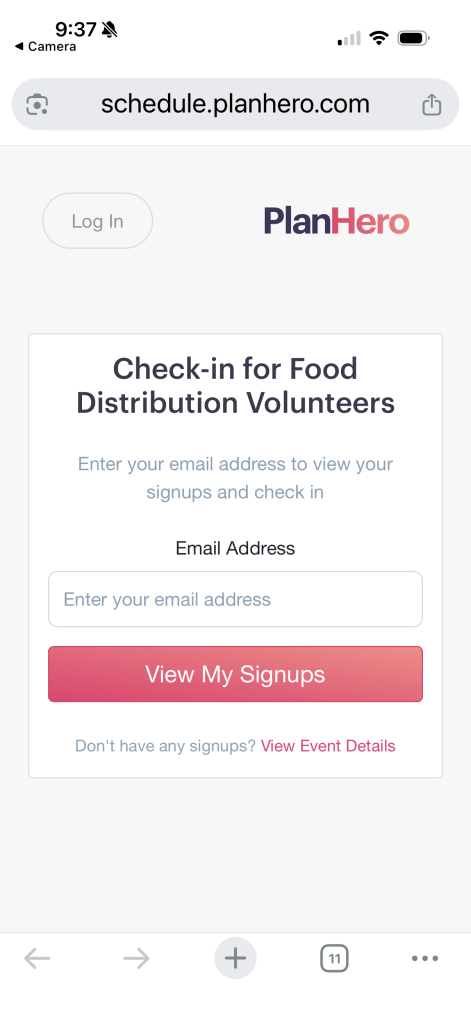
Participants use their mobile devices to scan the Event Check-in QR Code.
Next, they enter the email address that they used to sign up.
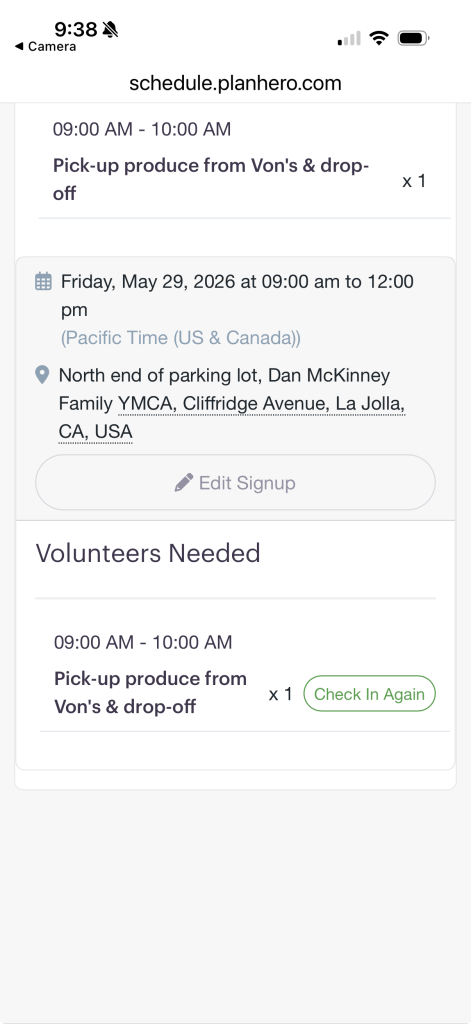
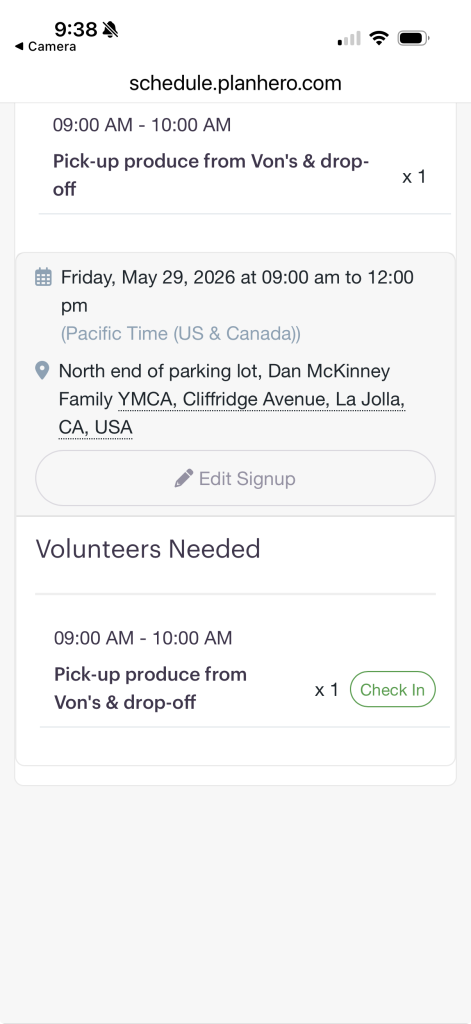
After entering their email address, they will see all of their signups. Scroll to the shift that they want to Check-in for and click Check In.
A status bar message will indicate that the participant has successfully checked in. Note that the button now changes to Check Out.
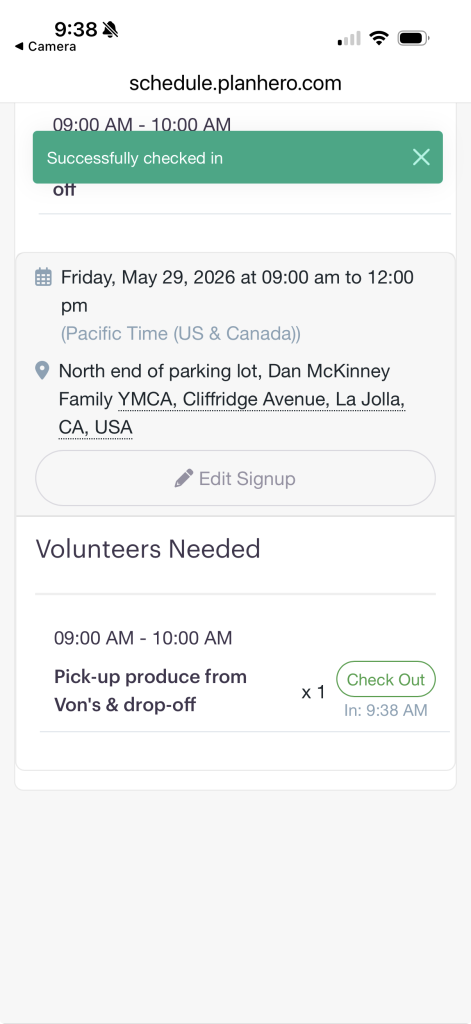
If the participant Checks Out (e.g. they need to go pick up a child in the middle of their shift), they can then click on Check In Again when they return.