There are several ways for messages to be sent via PlanHero.
Messages via the CONTACT button
If checked in Event Settings, participants are allowed to contact the Event Organizer via the CONTACT button located on the Event page:
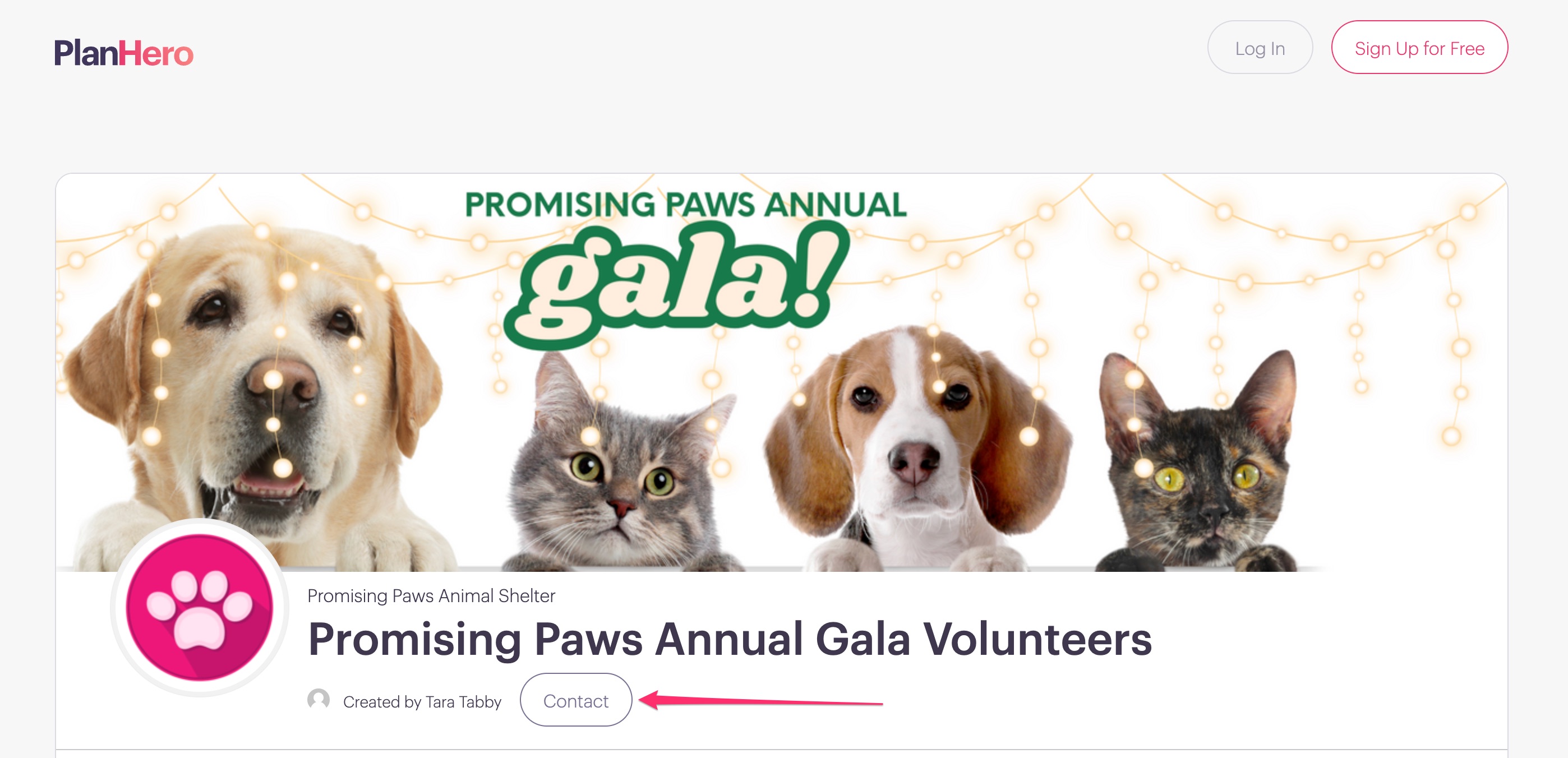
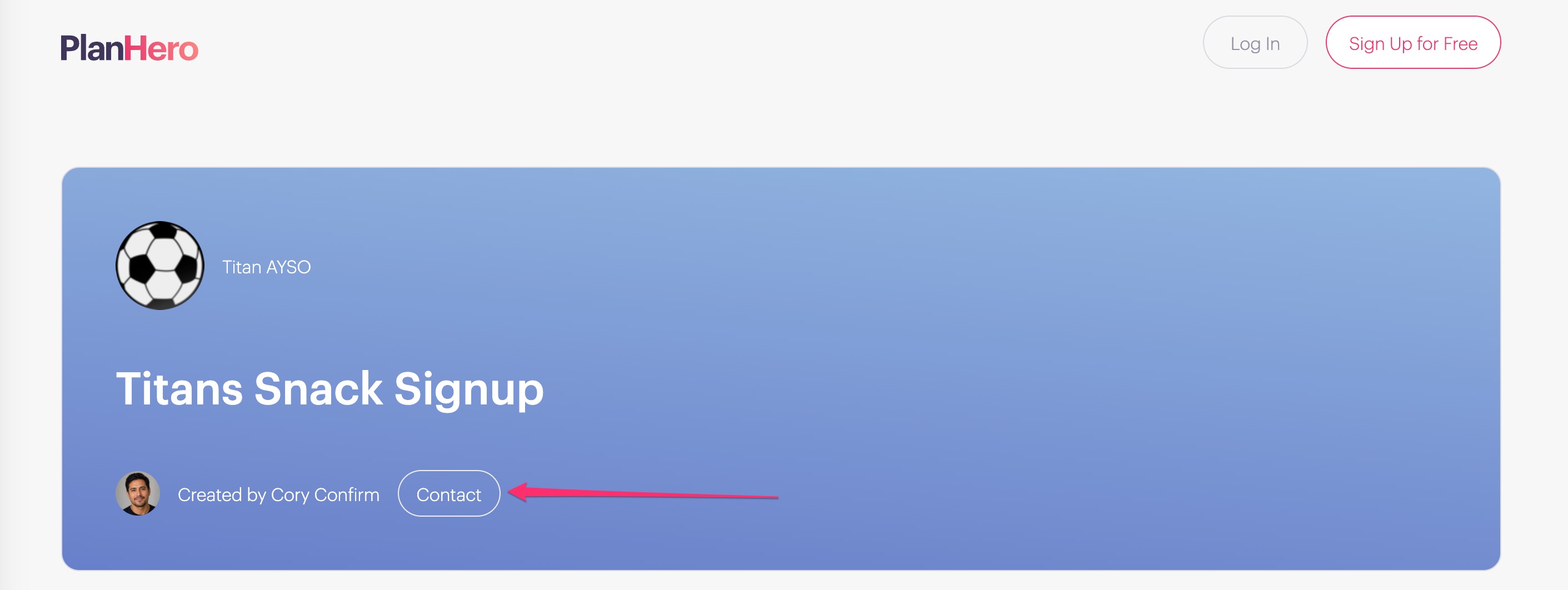
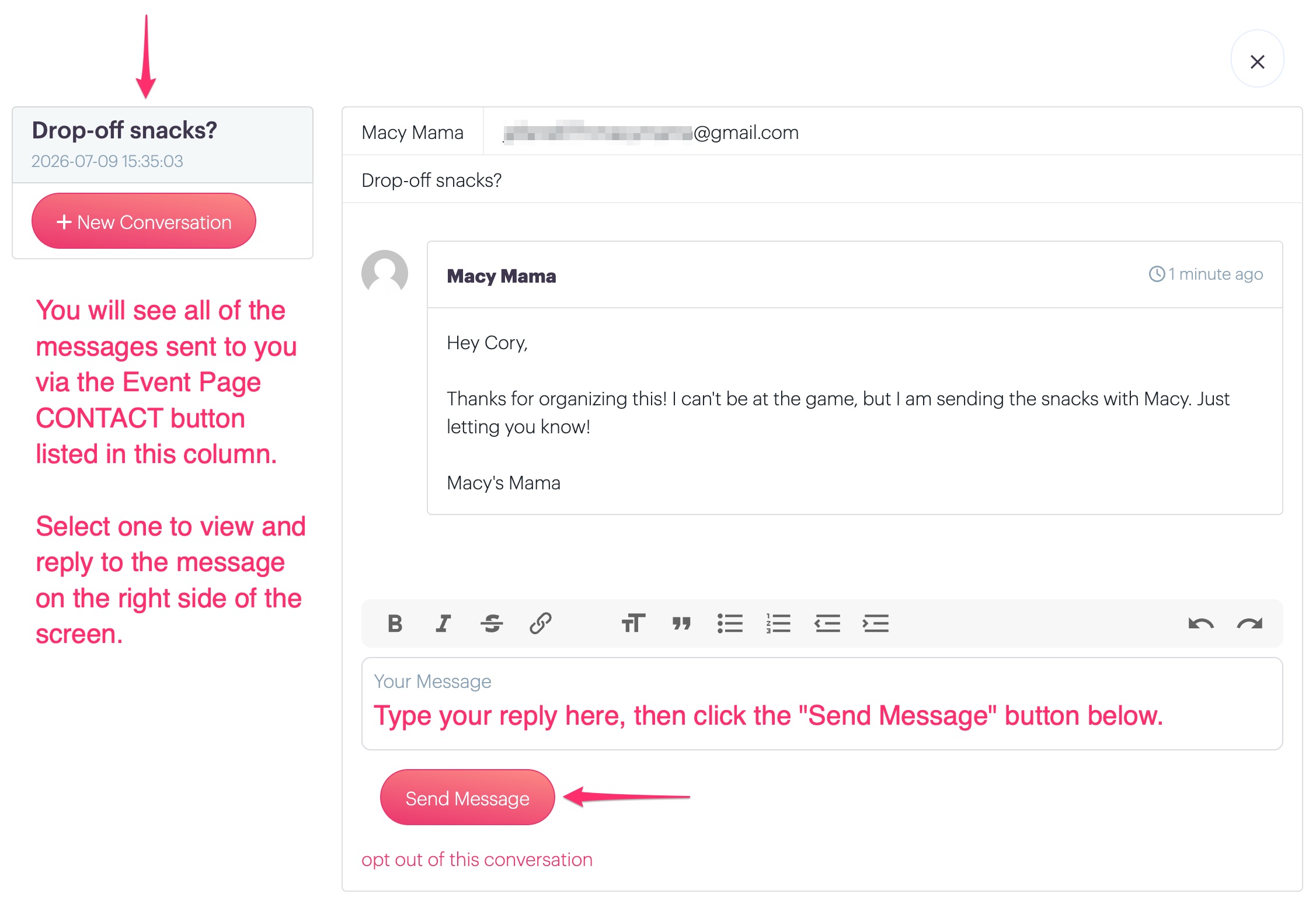
When a participant sends the organizer a message via the CONTACT button, the organizer will receive an email that includes the participant's message. The organizer may either reply directly to that email notification, or they may reply via the CONTACT button as annotated below:
Organizers may reply to the message by first logging into their account, then clicking on the CONTACT button. They can click on the desired message in the left column, then type their reply in the "Your Message" text box. When complete, click the "Send Message" button.
Messages via the MESSAGE feature (Group and Event)
Group Message Feature
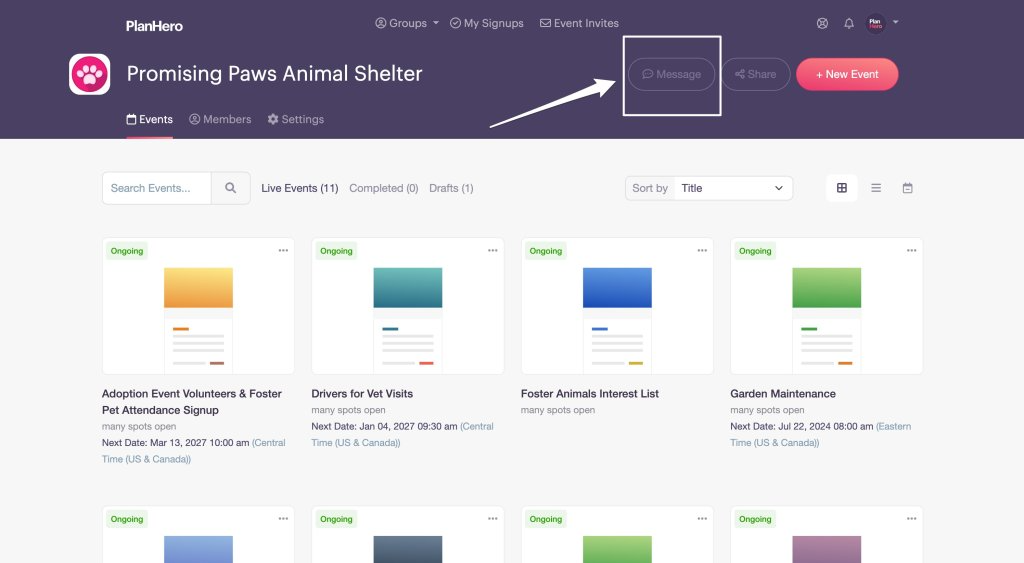
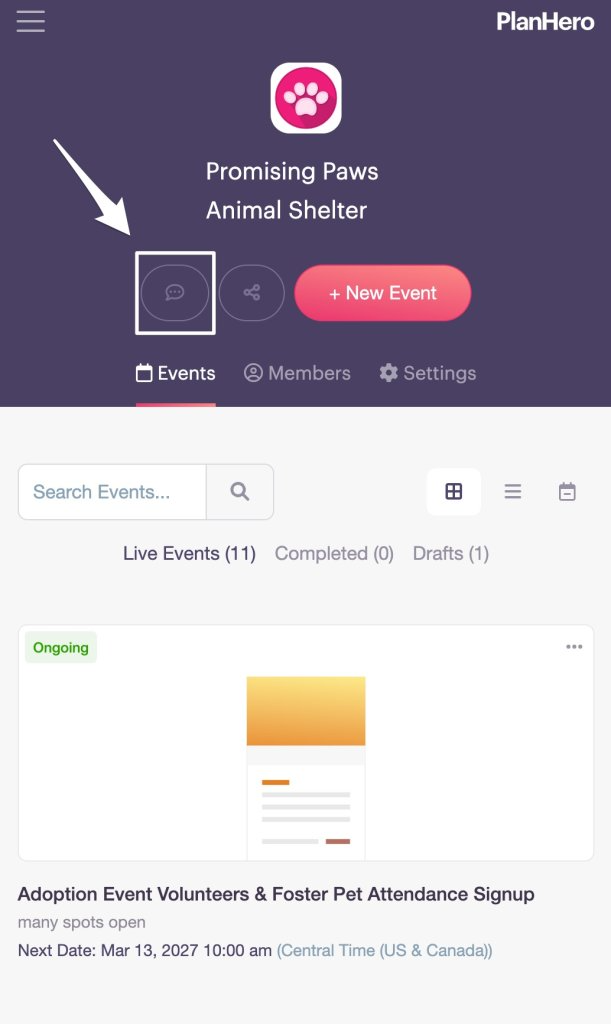
1. Go to the Group Message feature: You’ll find the Group Message feature in your dashboard when you are on your Group Page screen.
DESKTOP
MOBILE
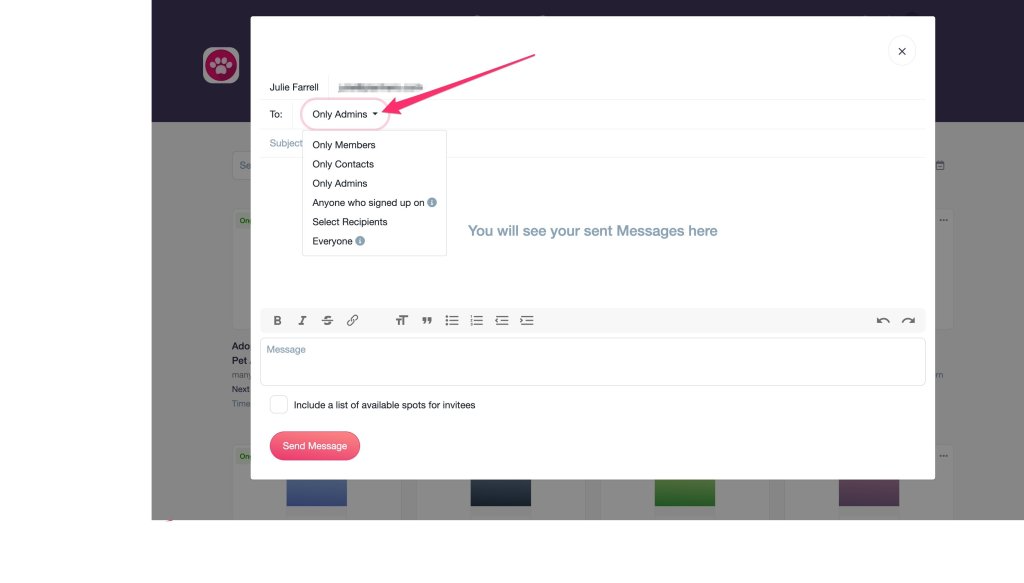
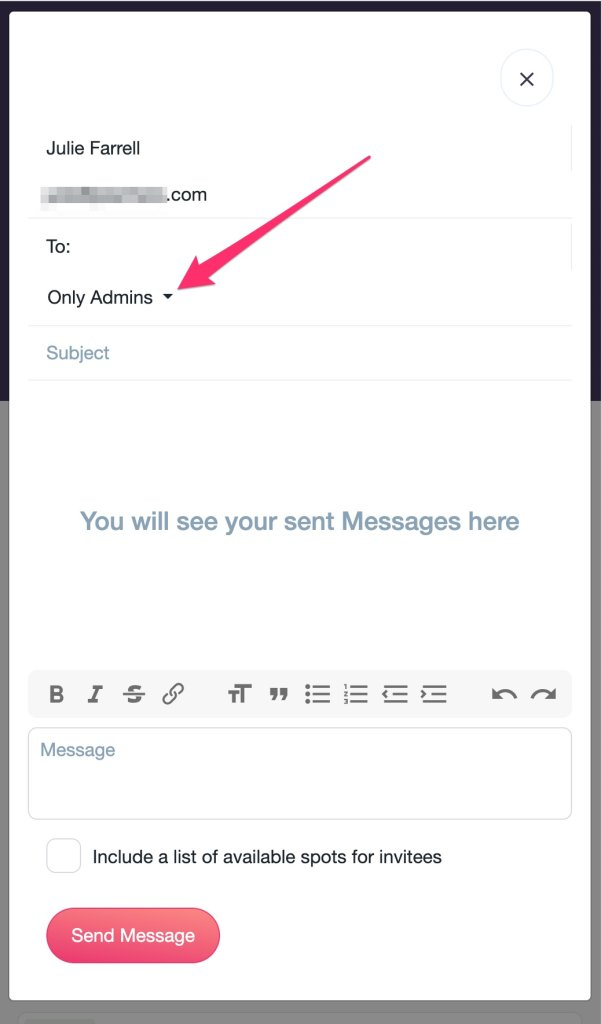
2. Select who you want you send your message to: Click on the dropdown menu arrow next to To: Only Admins. This will reveal your options
DESKTOP
MOBILE
- Only Members – People who are Members of your Group or who have been invited to be Members of your Group. Available on Pro and Enterprise Plans only.
- Only Contacts – People who are Contacts of Members of your Group or who have been invited to be Contacts of Members of your Group. Available on Pro and Enterprise Plans only.
- Only Admins – People who are Group Admin and Group Co-Admins.
- Anyone who signed up on – Includes anyone who has signed up for something in Events which you will select.
- Select Recipients – People whom you will select by name.
- Everyone – Includes all Co-Admins, Co-Organizers, Group Members, Group Contacts, Invitees, and anyone who signed up for any Event in the Group.
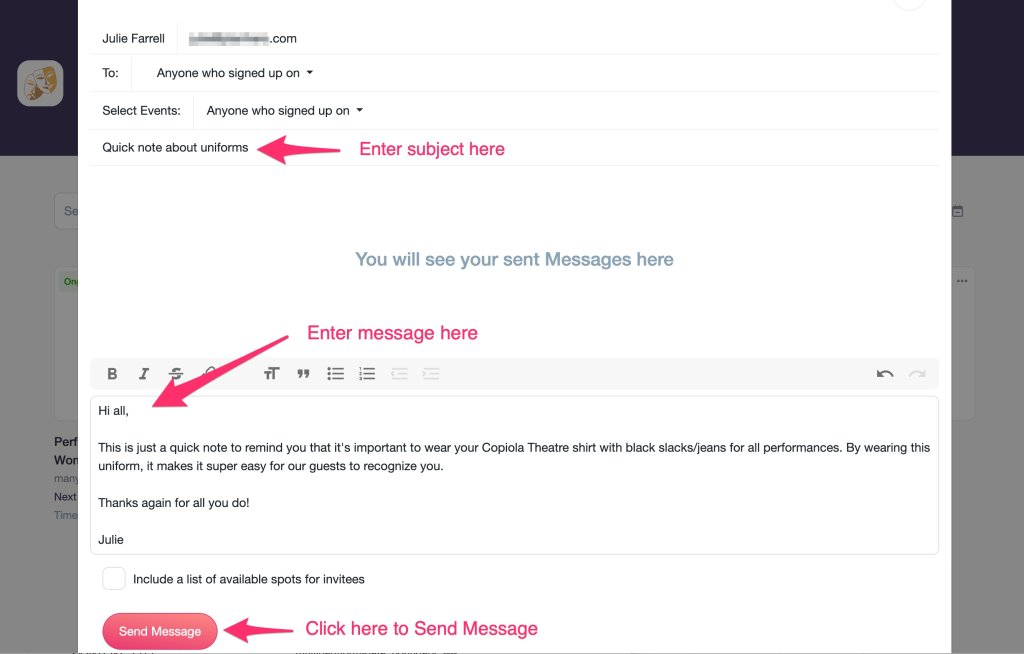
3. Enter Subject: Type your subject line (see graphic below).
4. Enter Message: Type what you want to say to your recipients (see graphic below).
5. Send Message: Click on the pink Send Message button to send your message (see graphic below).
Event Message Feature
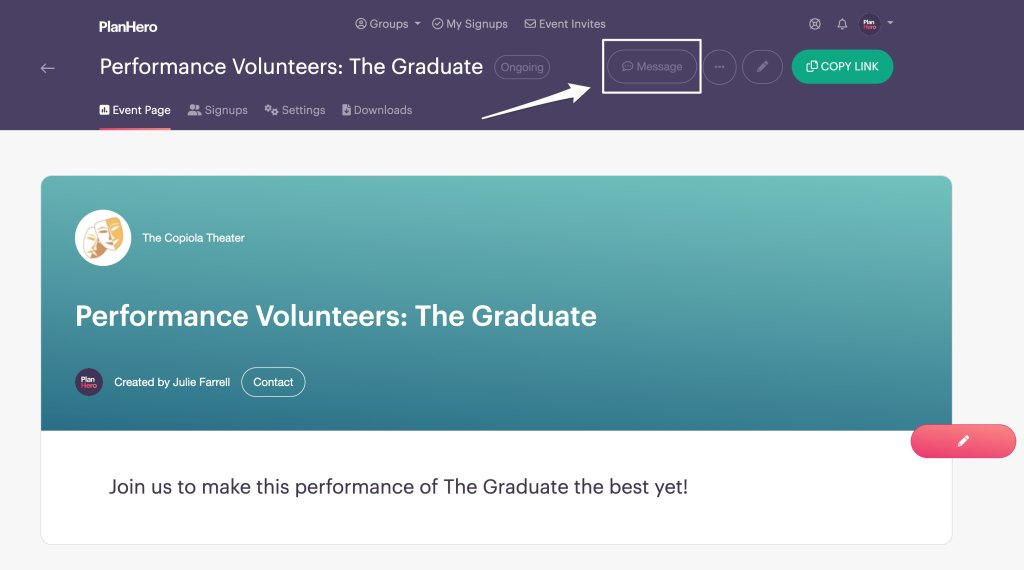
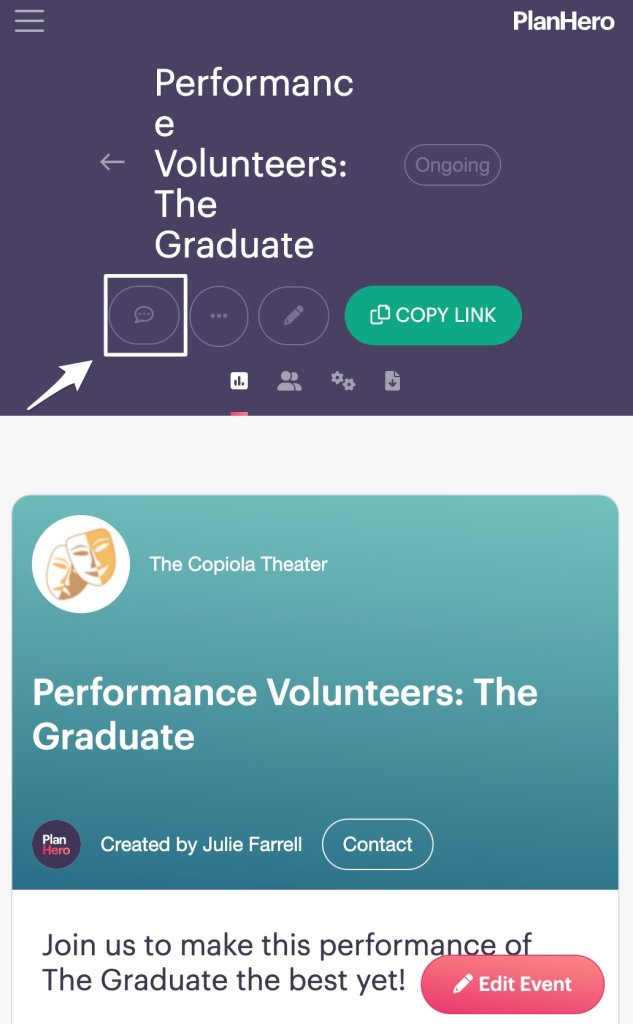
1. Go to the Event Message feature: You’ll find the Event Message feature in your dashboard when you are on your Event Page screen.
DESKTOP
MOBILE
2. Select who you want you send your message to: Click on the dropdown menu arrow next to To: Only Organizers. This will reveal your options
DESKTOP
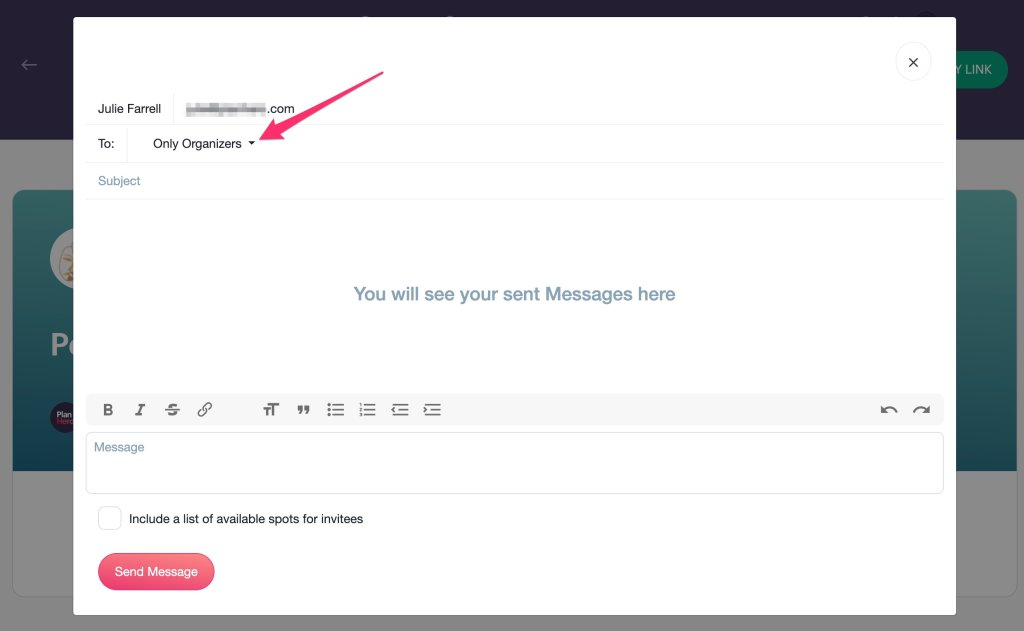
MOBILE
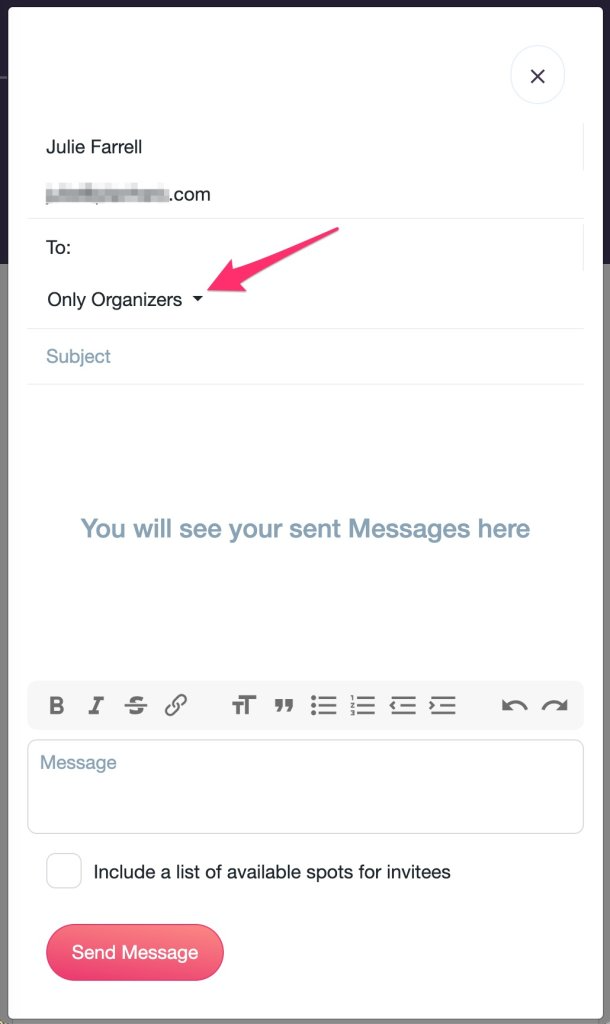
- Only Organizers – People who are Event Organizers or Co-Organizers (Account Owners and Group Admins are automatically added as Co-Organizers)
- Only Invitees – People who you added as Invitees in your Signups tab
- Only Group Members – People you have added as Members to your Group
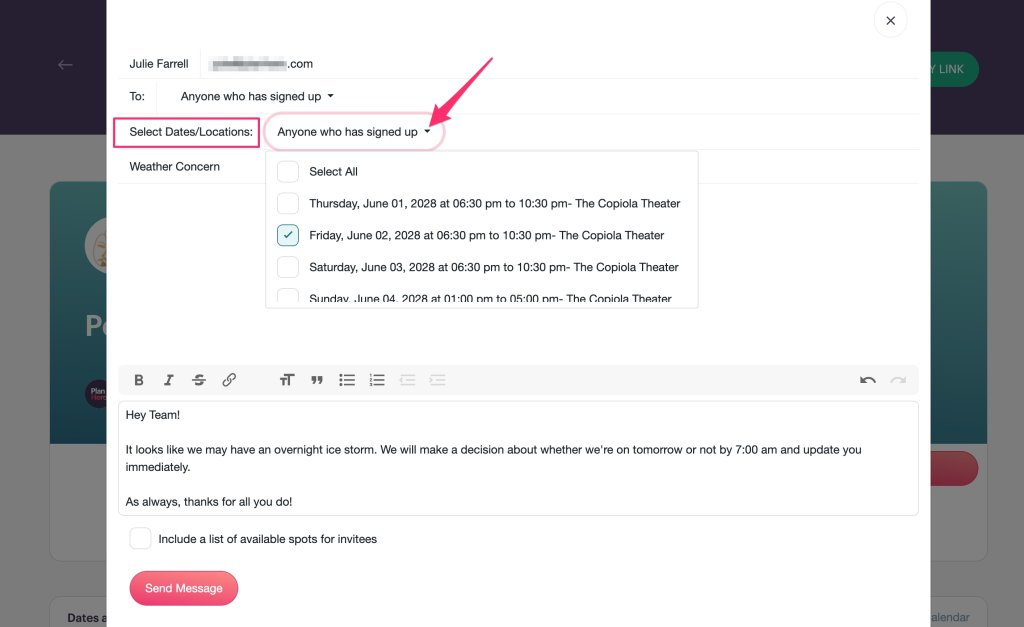
- Anyone who signed up on – Includes anyone who has signed up for something in the Event. You can then select all Dates/Locations, or only specific Dates/Locations (see screenshot below).
- Select Recipients – People whom you will select by name.
- Everyone – Includes all Co-Admins, Co-Organizers, Group Members, Invitees, and anyone who signed up for this Event
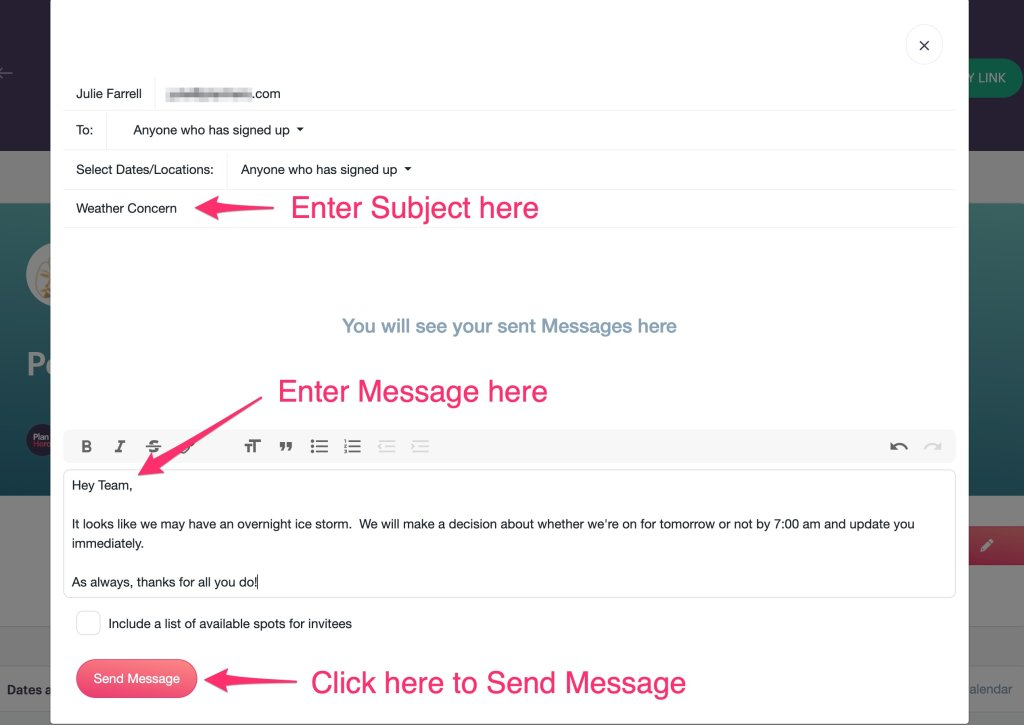
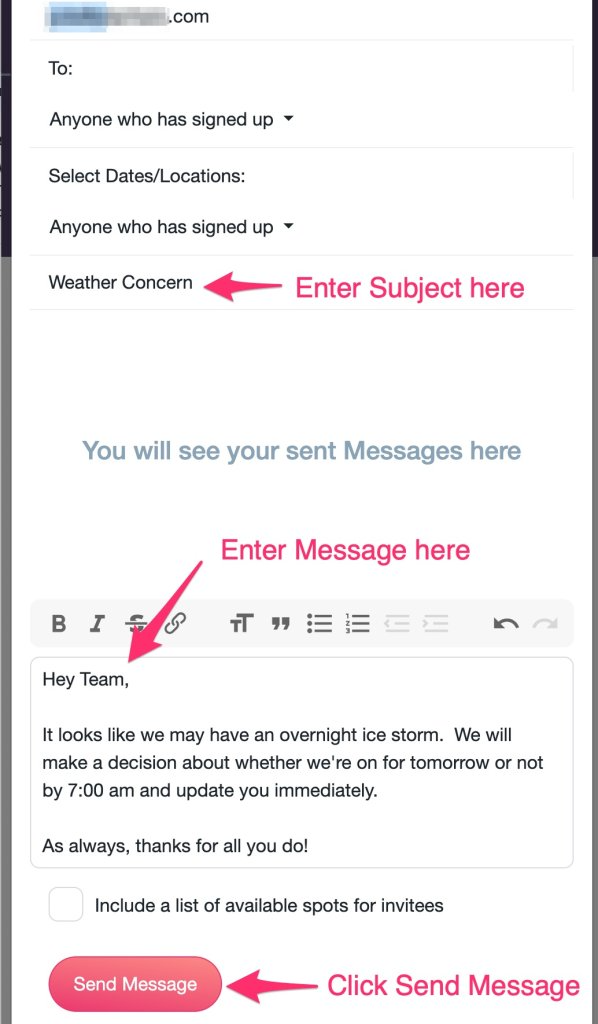
3. Enter Subject: Type your subject line (see graphic below).
4. Enter Message: Type what you want to say to your recipients (see graphic below).
5. Send Message: Click on the pink Send Message button to send your message (see graphic below).
DESKTOP
MOBILE
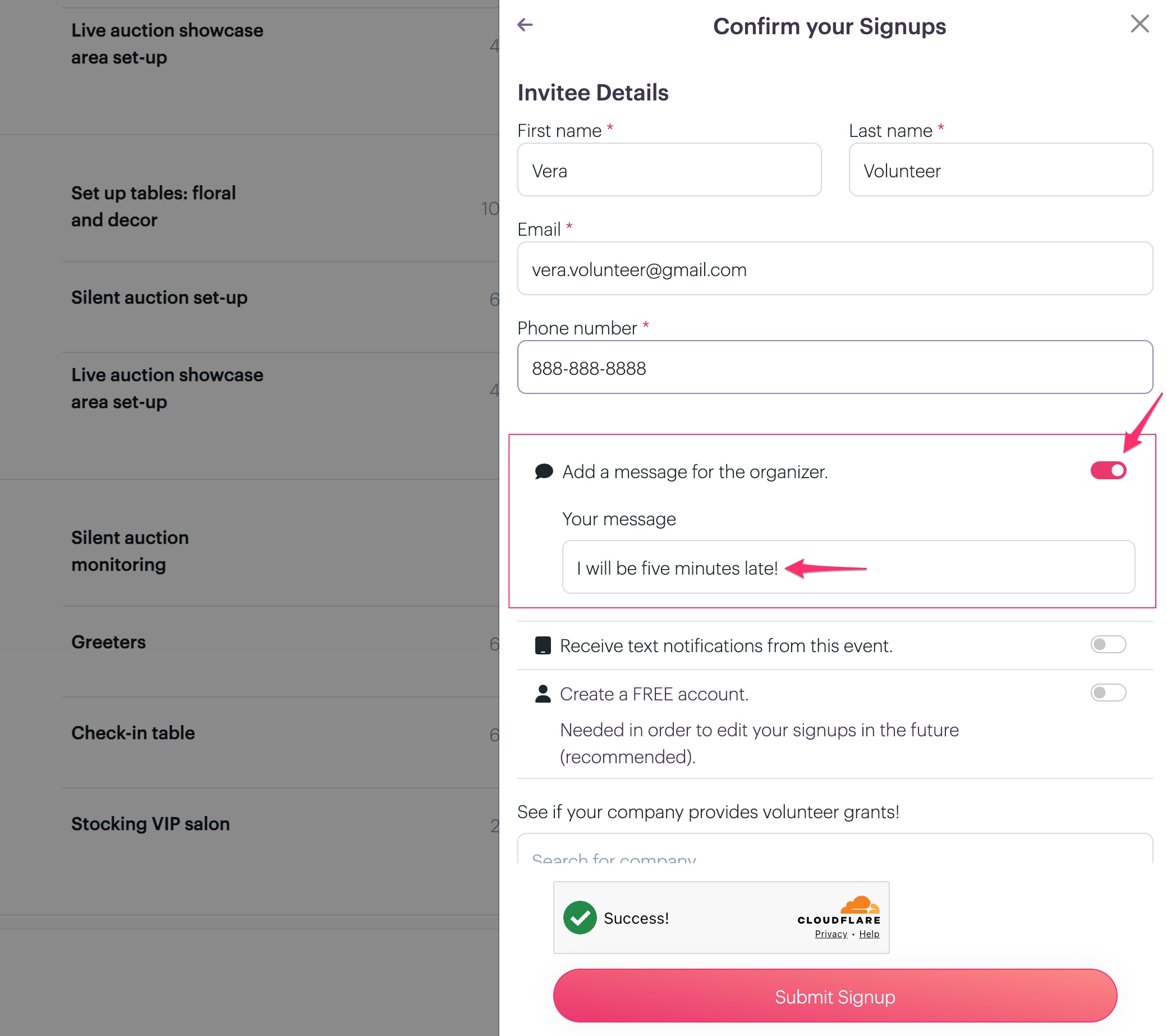
Messages via "Add a message for the organizer." during the signup confirmation process
Participants may enter a message to the Event organizer when they are completing their signup confirmation.
These message are included in the email notifications that PlanHero sends to the Event organizer.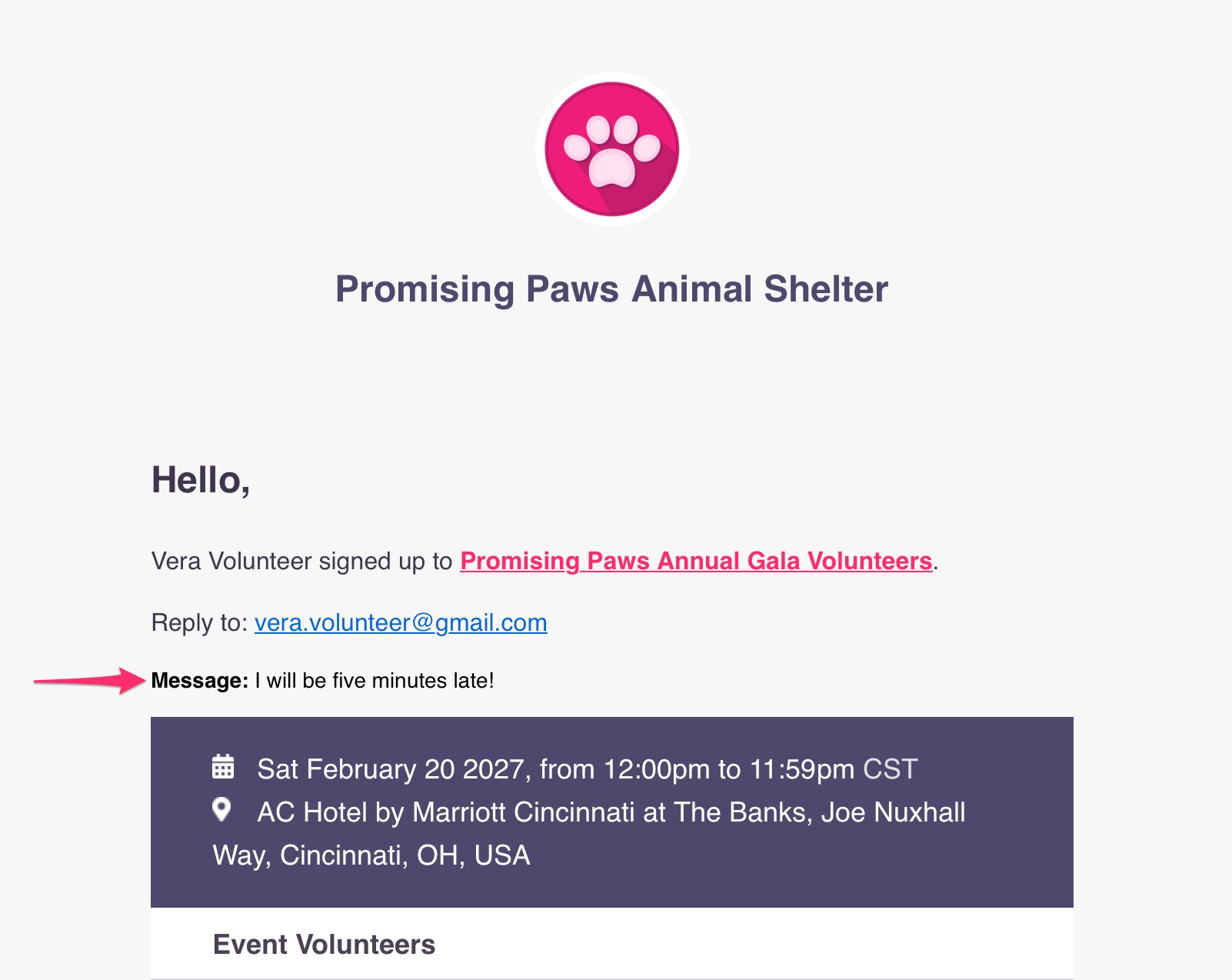
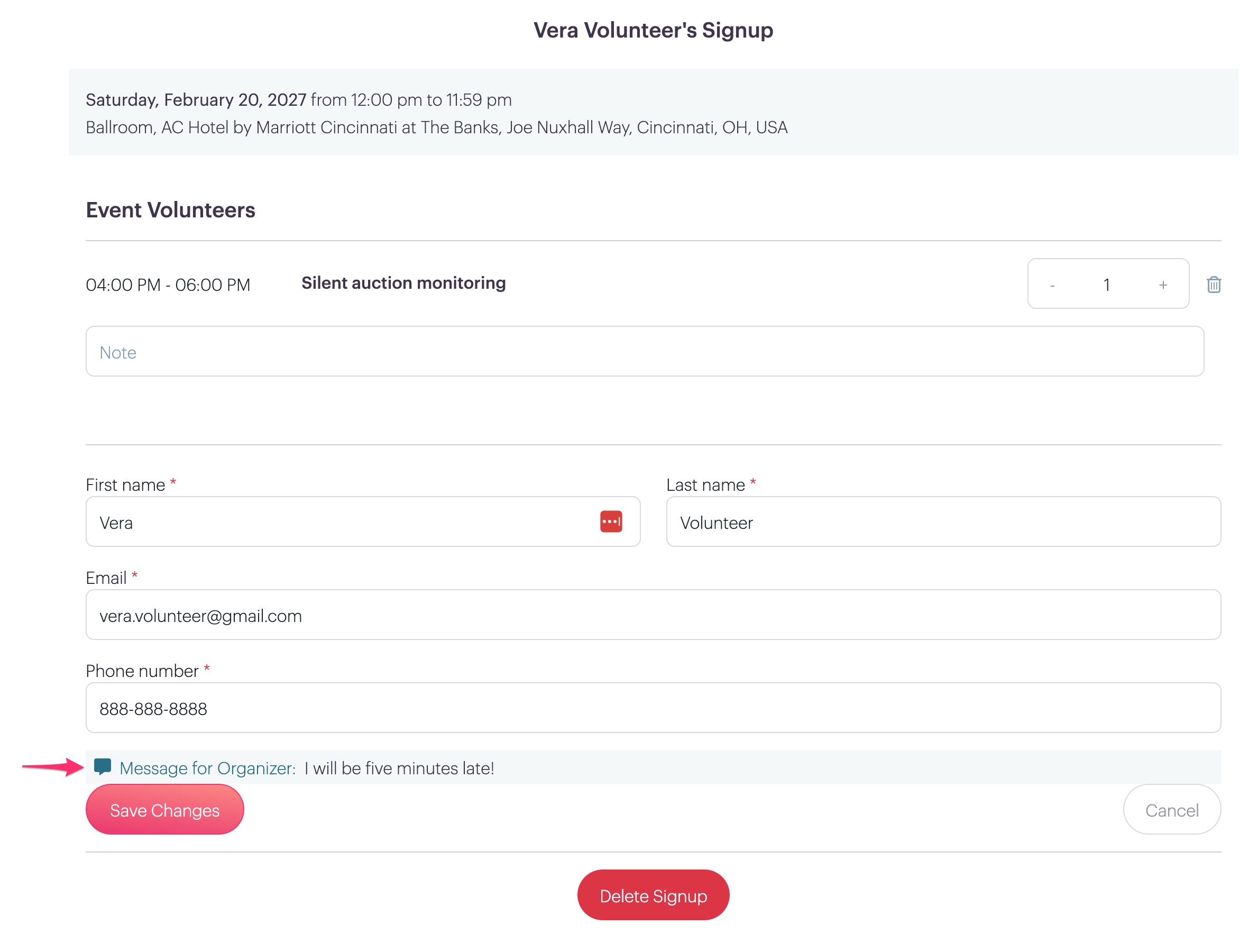
In addition, they can be found in the participant's profile under the Signups tab in the organizer's Event dashboard.

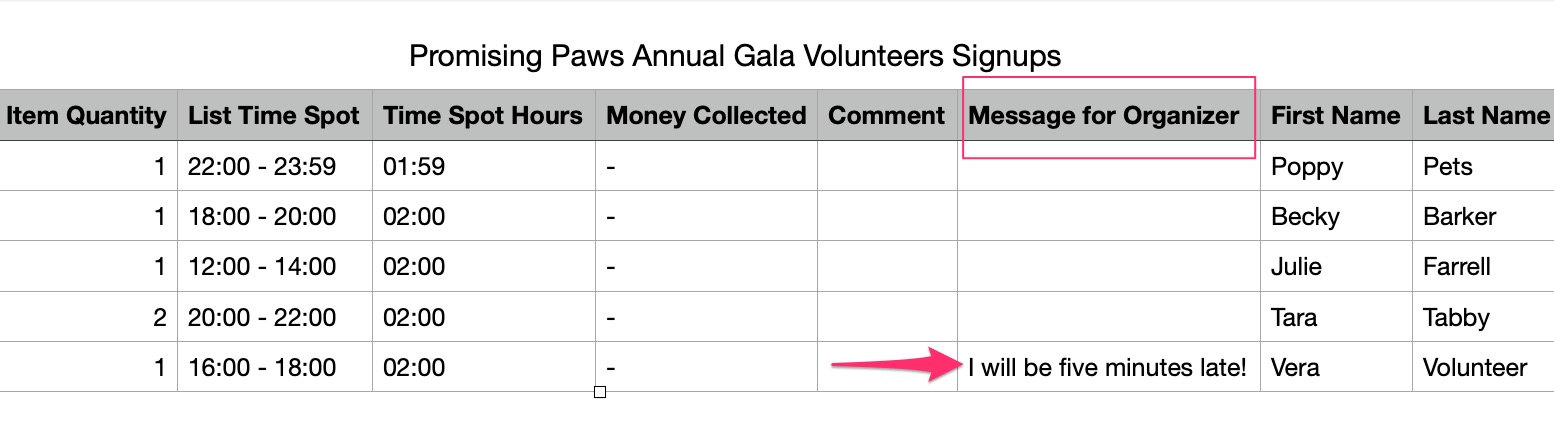
Finally, you can also see the Message for Organizer in the CSV Download (Report) that includes all EVENT SIGNUPS.