
This article is specific to the PlanHero Impact Plan
Managing volunteers, employees, participants, and other members of your organization can quickly become complicated—especially when their information lives in different spreadsheets, email lists, waiver files, and volunteer records.
PlanHero’s Impact Plan brings that information together in one place.
Once you’ve created your Groups, you can begin adding Members and use the Members tab to manage everything from invitations and approvals to waivers, volunteer hours, training requirements, and more.
Here’s how it works.
If you’re more of a visual learner, click here to skip down to a How-to video of this material.
First, Organize Your Members into Groups
Impact Plan accounts can have multiple Groups, allowing you to organize people in whatever way makes the most sense for your organization.
For example, a nonprofit might create Groups based on geographic locations or departments such as Development, Volunteers, or Facilities.
A school might create Groups for its PTA, fundraising committee, room parents, athletics, or other programs.
There’s no single “right” way to organize your Groups. The idea is to create a structure that reflects how your organization actually works.
Once your Groups are established, you’re ready to start adding Members.
Three Ways to Add Members
From the Members tab, click Quick Add.
PlanHero gives you three ways to add people:
- Add Members individually
- Add Members in bulk
- Upload a CSV file
When adding Members, first name, last name, and email address are required. Phone numbers are optional.
For bulk entry, simply format each Member’s information with commas separating the fields:
First Name, Last Name, Email Address, Phone Number (optional)
Already have your member information in another database or spreadsheet? You can reformat that existing data (AI’s such as Chat GPT or Gemini can do this for you basically instantaneously) and paste it directly into the bulk-entry field.
You can also download PlanHero’s CSV template, add your Member information, and upload the completed file.
Decide When You Want Invitations Sent
When you add Members, pay attention to the Invite Members checkbox.
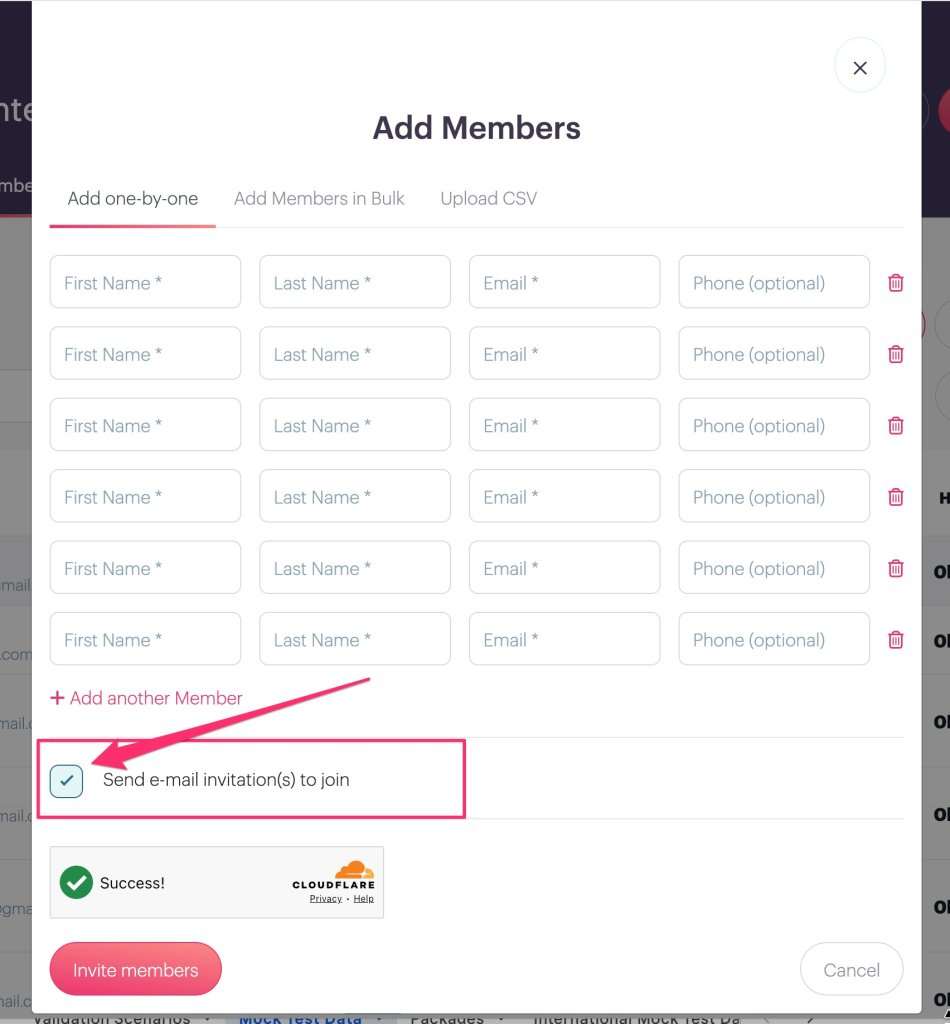
By default, it is selected. That means PlanHero will send invitations when you finish adding your Members.
If you’re building your roster gradually, but want everyone to receive their invitations at the same time, simply uncheck this option.
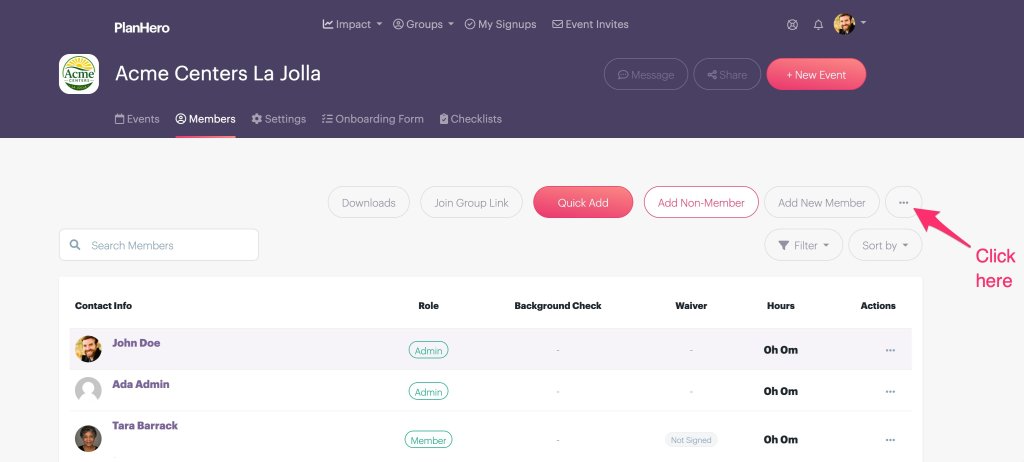
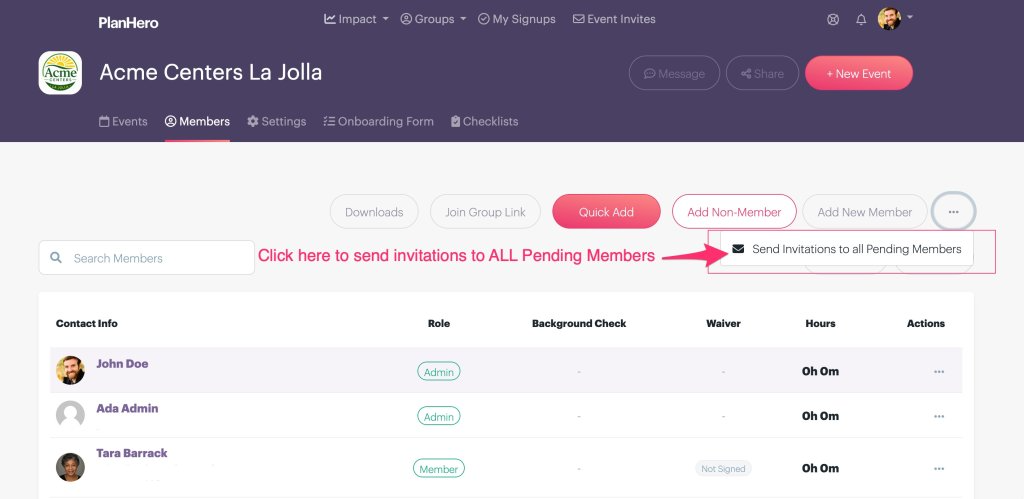
Later, when you’re ready, you can send invitations to all pending Members directly from the Members tab.
An Even Easier Option…Option #4: Let Members Join Themselves
You don’t necessarily have to enter your Members at all.
Each Group also has a Join Group link that you can copy and share.
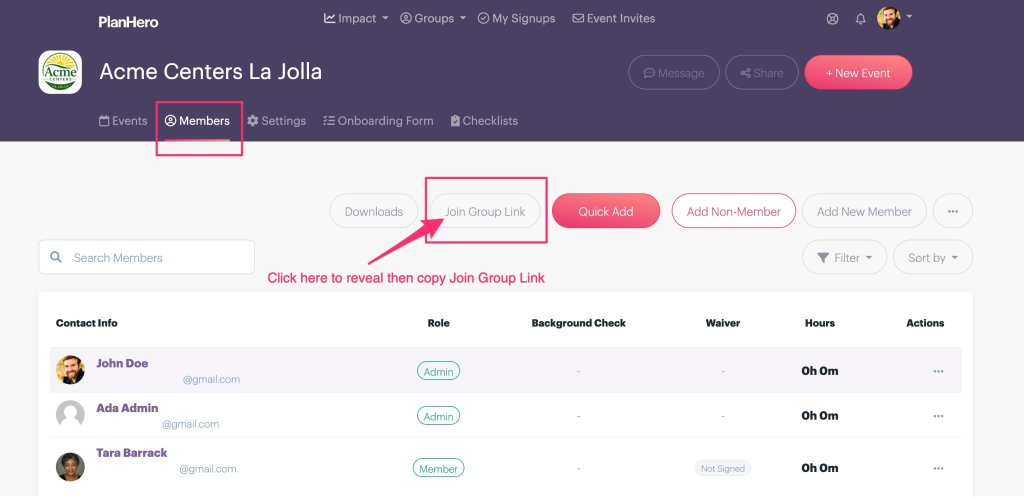
For example, you might send an email to your existing volunteer or employee list letting everyone know that your organization is now using PlanHero and asking them to join their Group.
They click the link and enter their own information.
If you have an Onboarding Form enabled, prospective Members will complete that form as part of the process. Their first name, last name, email address, and phone number can then be automatically added to your Member roster.
This can be especially useful for organizations with large groups because your volunteers, employees, or participants can provide their own information instead of requiring an administrator to enter everyone manually.
Invitations, Pending Members, and Approvals
The Members tab also makes it easy to see where everyone stands in the onboarding process.
A Member marked Pending has not yet accepted the invitation to join your organization. If necessary, you can resend the invitation.
What happens after someone accepts, depends on how you’ve configured your Impact Plan account.
If you’ve chosen to require administrator approval (see Impact Admin Settings), the prospective Member will remain in an awaiting-approval status until an administrator approves them.
Once approved, their status changes to Member.
If you don’t require approval, they’ll become a Member immediately after completing the necessary joining and onboarding steps.
Your Members Tab: More Than a Contact List
Once someone becomes a Member, their individual profile gives your organization a centralized place to manage important information about their participation.
Open a Member’s profile and, depending on the features you’re using, you can see and manage information such as:
- Signed waivers and agreements
- Volunteer hours
- Privacy preferences
- Additional associated contact people
- Answers to Onboarding Form fields
- Checklist requirements
- Documents associated with the Member
- Background check status (if applicable)
- Training and certification completion dates
- Expiration dates
Instead of maintaining separate spreadsheets and files for these records, you can keep them connected to the individual Member.
View Signed Waivers and Agreements
If your organization uses PlanHero’s Onboarding Form waiver and agreement features, you can see which documents a Member has completed directly from their profile.
For example, a volunteer might have completed a:
- General Liability Release
- Code of Conduct
- Volunteer Role Agreement
Administrators can open individual agreements to review the Member’s acceptance or signature and access the associated information.
This gives you an easy way to verify whether required agreements have been completed without searching through separate files or email attachments.
Add Manual Volunteer Hours
Not every hour someone contributes happens during a scheduled PlanHero Event.
Maybe a volunteer made a Costco run to purchase supplies. Perhaps someone completed preparation work from home or helped with an administrative task outside a scheduled shift.
You (or the Member if you allow it in your Admin Settings) can manually add those hours directly to the Member’s profile, including the date and a description of the work performed.
That helps ensure Members receive credit for the work they’re actually doing—not just the hours associated with scheduled Events.
Track Training, Certifications, and Other Requirements
Impact Plan Checklists can also be managed from the Member profile.
For example, your organization might require:
- Annual CPR training
- Safety training
- Orientation
- A certification
- A paper waiver or agreement
- Another recurring requirement
Administrators can record completion dates and, when appropriate, expiration dates.
This makes the Member profile especially useful for organizations that need to know not simply who their Members are, but whether each person has completed the requirements necessary to participate.
Keep Track of Non-Members, Too
Sometimes people help your organization without formally becoming Members of one of your Groups.
Impact Plan accounts can also maintain Non-Members.
For example, someone might occasionally volunteer at an Event without wanting or needing to join your organization. If that person completes additional work outside of an Event, an administrator can still record their manual hours.
That allows your organization to maintain more complete participation and volunteer-hour records without requiring every person who helps you to become a Group Member.
Find and Export the Information You Need
As your Member roster grows, PlanHero provides filtering tools to help you quickly find people by information such as role, email address, or phone number.
You can also download Member data as a CSV, including:
- Member contact information
- More comprehensive Member information
That gives administrators flexibility when information needs to be used for reporting, analysis, or other organizational needs.
One Place to Manage Your People
Adding names to a database is easy. Keeping track of everything associated with those people is the harder part.
The Impact Plan Members tab is designed to give organizations one central place to manage the people who make their work possible.
Whether you’re managing volunteers, employees, participants, school families, committee members, or another type of Group, you can invite and onboard Members, monitor their status, maintain waivers and agreements, track volunteer hours, manage training requirements, and keep important Member information organized—all within PlanHero.